Step 1
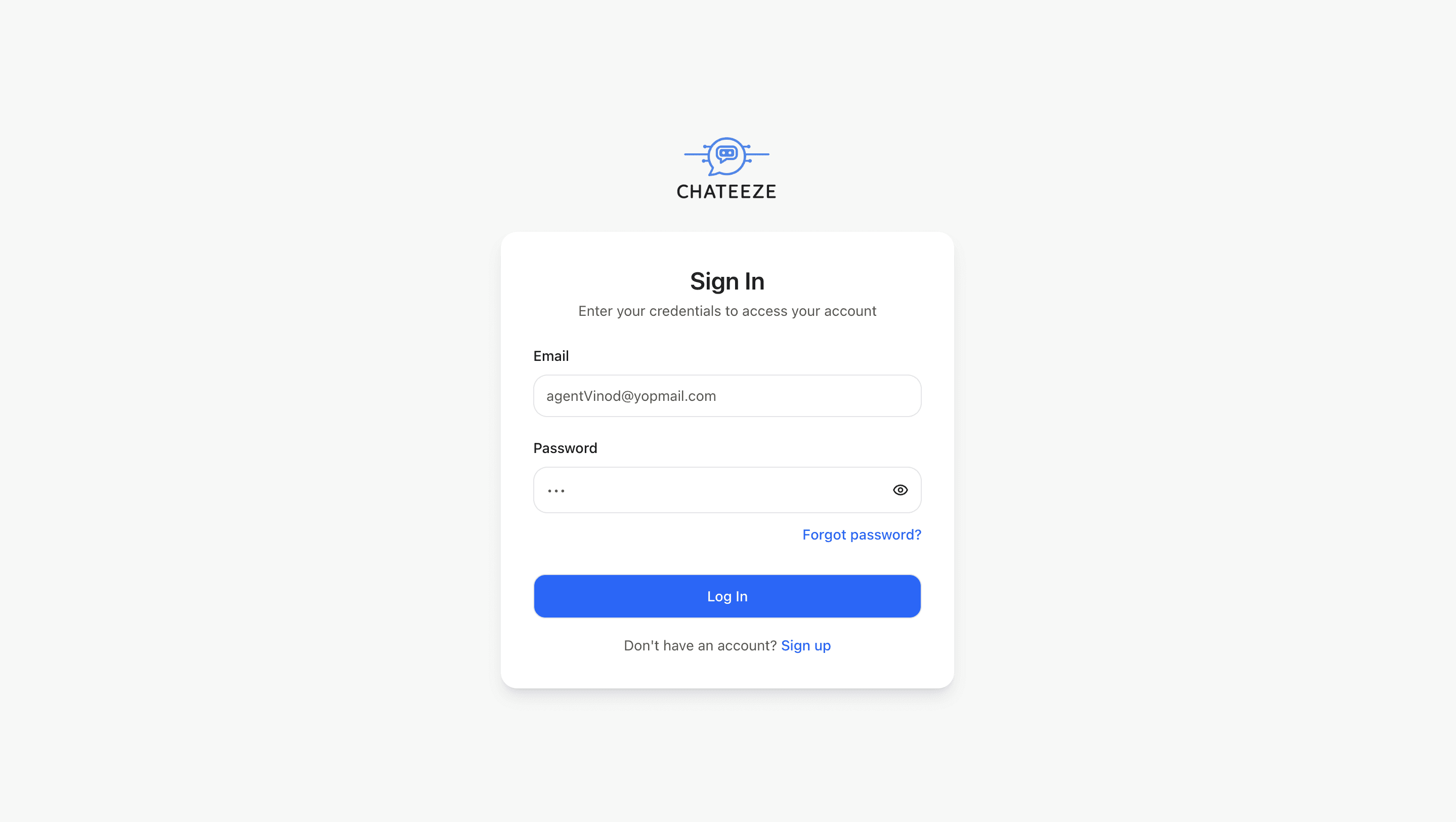
Chateeze Login
Chatbot Configuration Guide
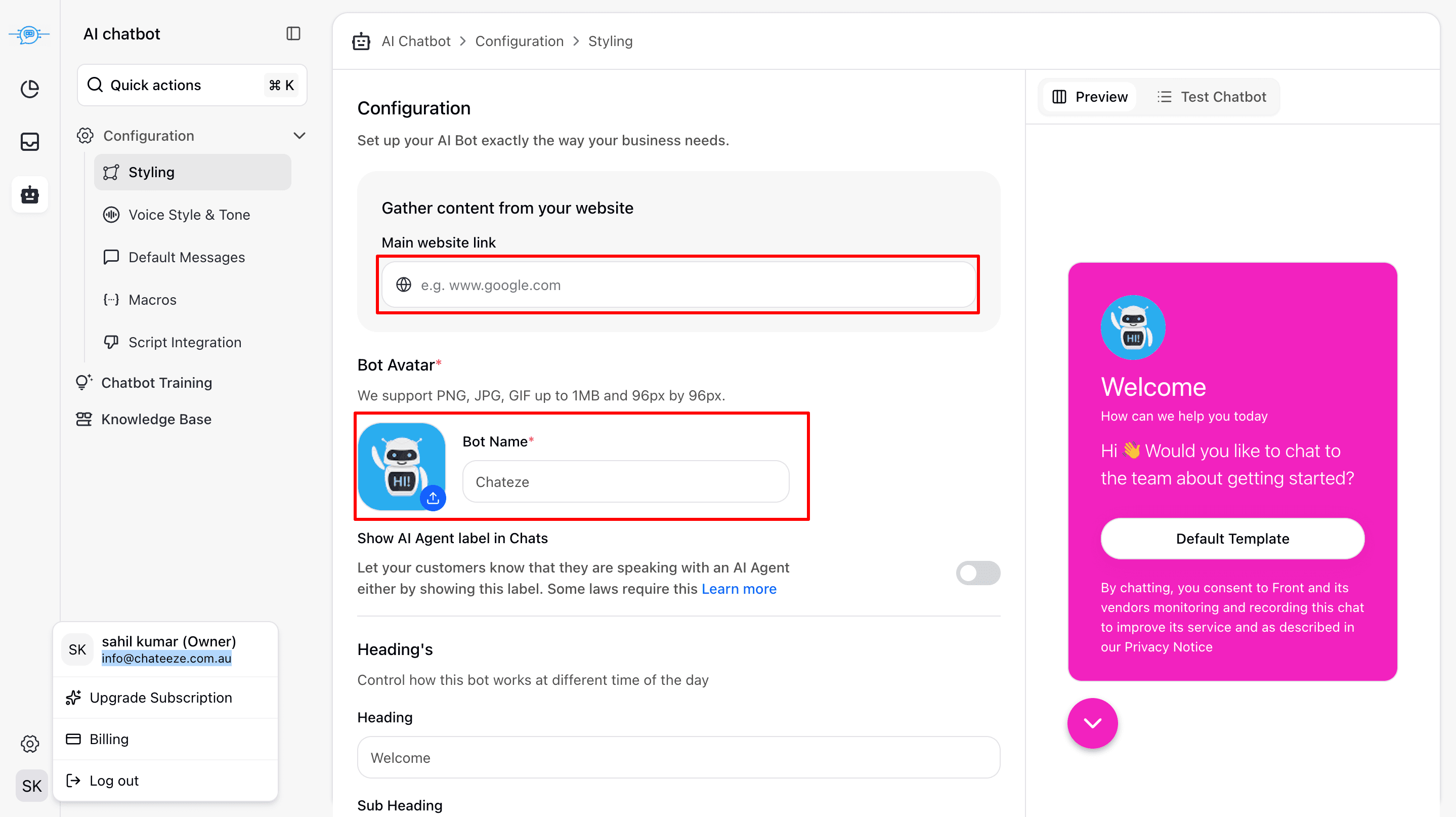
Configuration: Set up your AI chatbot to match your business requirements. From branding to availability, this section allows you to fully customize how your chatbot behaves and appears to users.
Bot Avatar: Upload a visual identity for your chatbot. Supported formats include PNG, JPG, and GIF, with a maximum file size of 1MB and recommended dimensions of 96px × 96px for best display quality.
Headings: Customize the chatbot’s greeting and messaging. Headings can be adjusted based on different times of the day, allowing the chatbot to deliver a more personalized and contextual user experience.
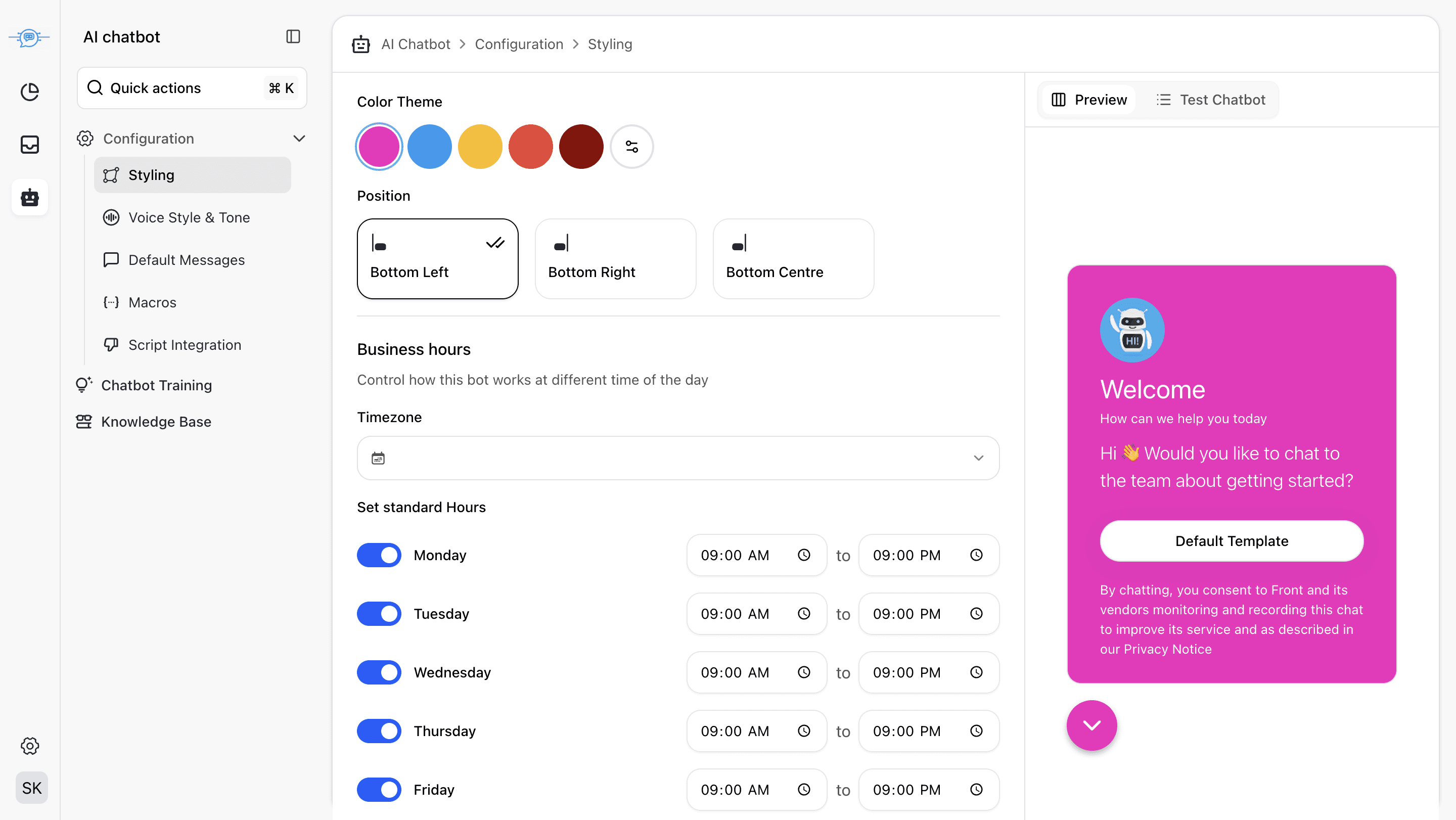
Color Theme: Choose a color theme that aligns with your brand identity. This ensures the chatbot visually integrates with your website design.
Business Hours: Define your working hours and timezone. The chatbot behavior can change based on availability, helping manage user expectations during off-hours.
Step 2
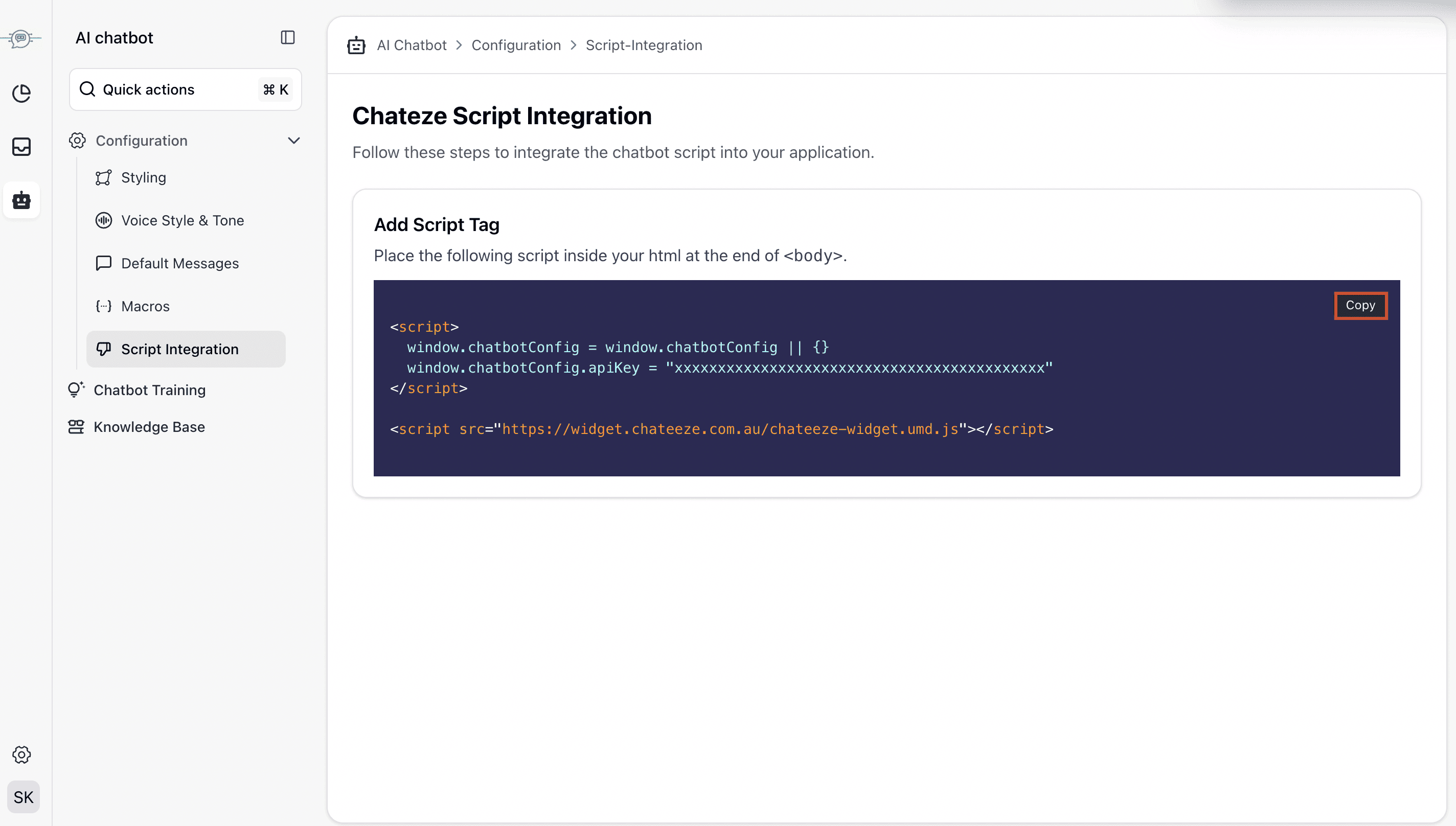
Copy the Chatbot Script
Once setup is complete, copy the embed code or JavaScript snippet provided by the chatbot platform.
Step 3
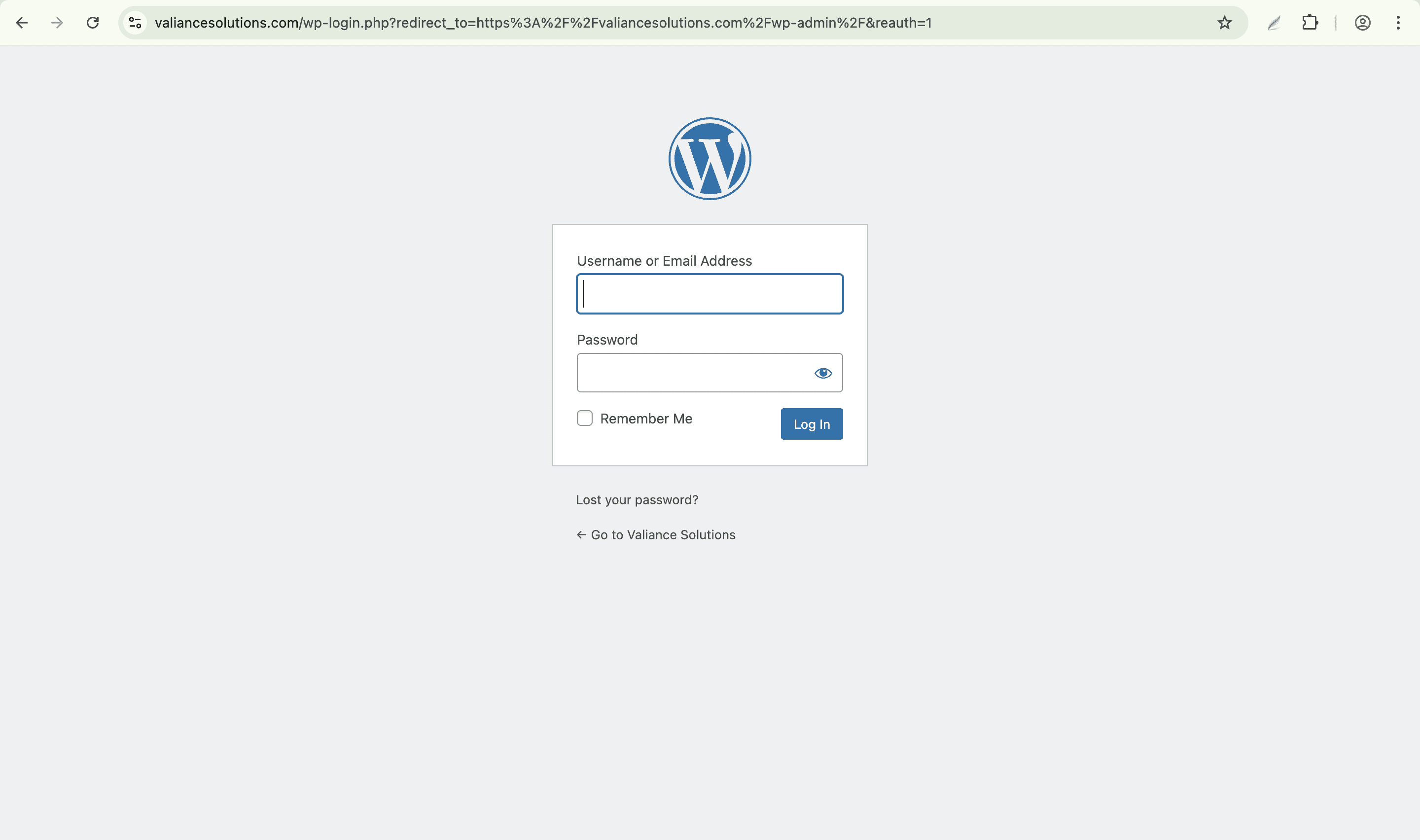
Log in to WordPress Admin
Access your WordPress dashboard using administrator credentials.
Step 4
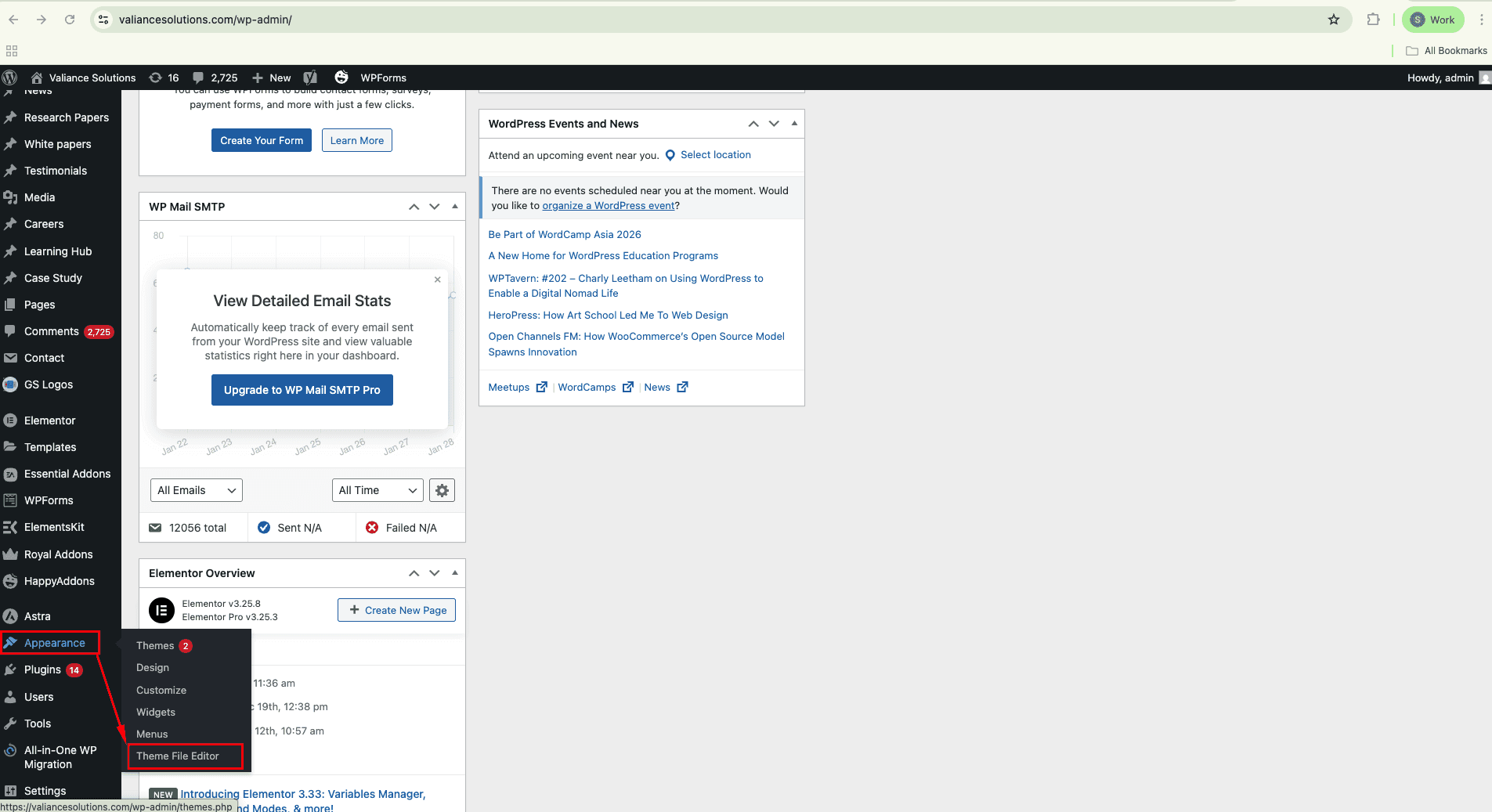
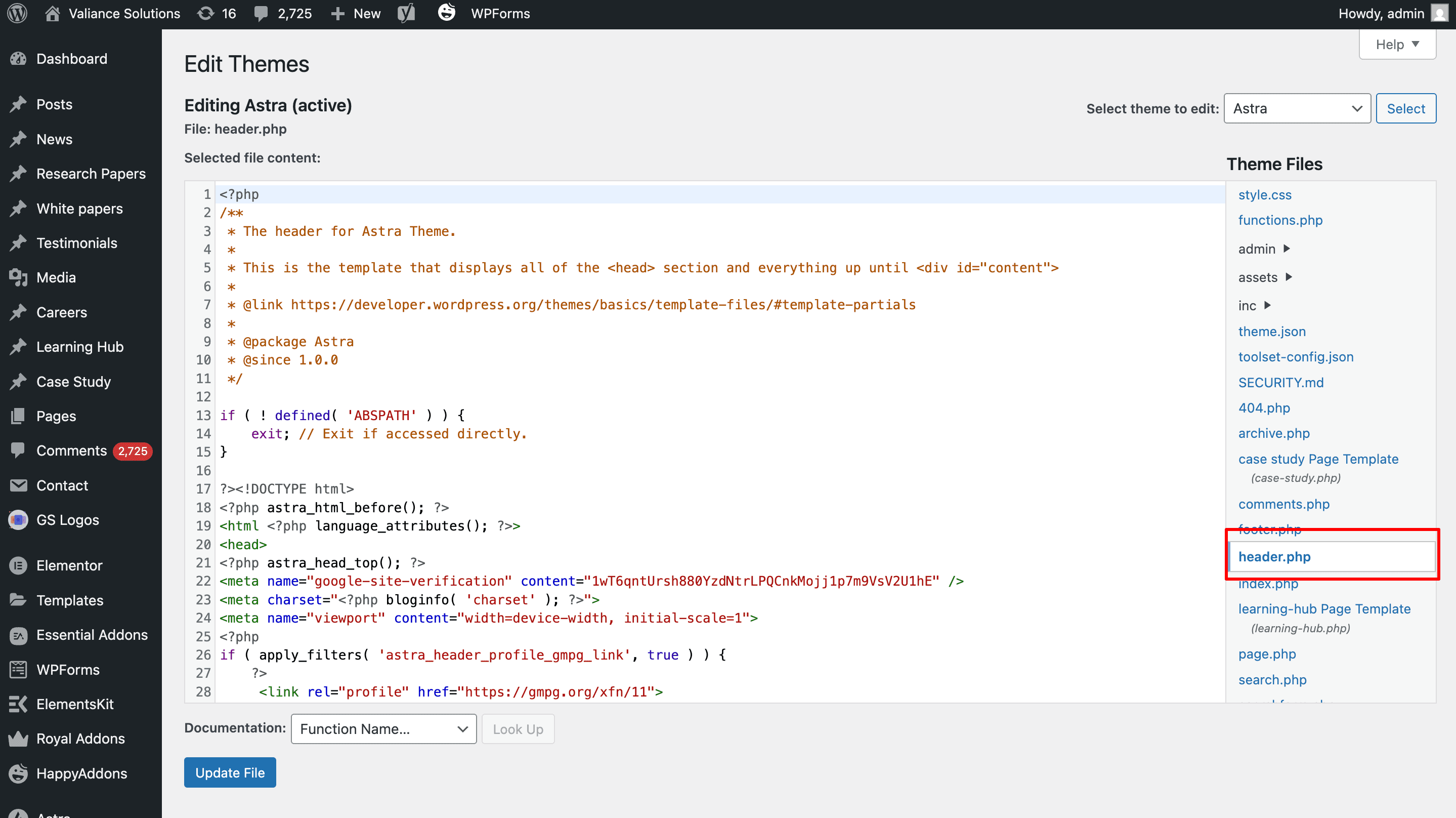
Add Script to WordPress
Go to Appearance → Theme File Editor and paste the script before the closing tag
Save Changes & Clear Cache: Save your settings and clear any site cache to ensure the chatbot loads correctly.
Test the Chatbot: Visit your website, open the chatbot, and test all interactions on desktop and mobile devices.
Go Live: Once everything works as expected, publish the chatbot and start engaging with your visitors.